← All help topics

Business page

Bookings

Appointment requests left by visitors on your public pages. You confirm or decline each one, and the follow-up goes out from your own WhatsApp.

தமிழில் படிக்க

Steps

  1. Requests only arrive if the page is asking for them. Open the page editor, find Appointment Booking under Additional Details and switch it on. It is part of the Basic plan and above.

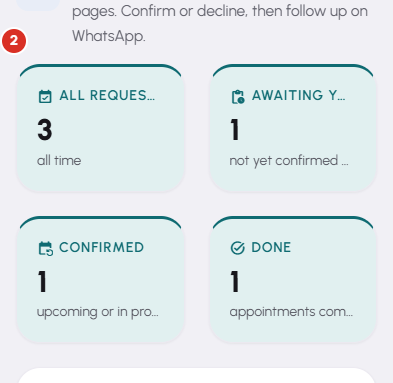
  2. The tiles say where things stand: All requests, Awaiting you, Confirmed and Done. Awaiting you turns red while anything is unanswered.
    Bookings — 2
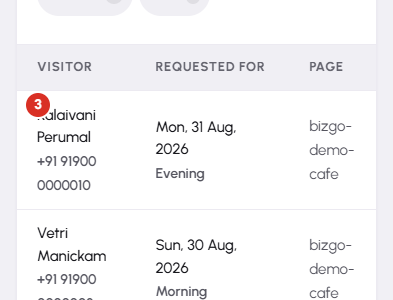
  3. Each row carries the visitor's name and number, the day they asked for, whether they wanted Morning, Afternoon or Evening, which page they came from, and any note they left. The chips above the table filter by state.
    Bookings — 3
  4. Press Confirm and two things happen: the request is marked confirmed, and WhatsApp opens with a message to that visitor already written. You press send yourself, and you can edit it first — the exact time is usually what you are agreeing there.

  5. Decline closes a request you cannot take. Mark done finishes off one that has already happened, so your list stays a list of things still to do.

Questions

No. Confirming opens WhatsApp with the message ready and the number filled in. Pressing send is yours, which is why it arrives from your own business number rather than one your customer does not recognise.

Two things to check, in this order. Appointment Booking must be switched on in that page's editor — it is off until you turn it on. And it needs the Basic plan or above on that page: the section shows as locked otherwise, and your public page will not display the form.

No. A visitor asks for a day and a rough window, not a slot. The exact time is what you settle in the WhatsApp conversation the Confirm button opens.

The request is still confirmed — only the hand-off is skipped, and that happens when the number they typed is not a usable mobile. Call them on the number shown in the row instead.

In your contacts, tagged as a booking, so a visitor who asked for an appointment can later be included in a review campaign like any other customer.

Related

Three Products, One Dashboard

Your page, your plan. The Review Engine and AI Chat come with Pro and Premium — manage every page from one dashboard.

Digital Business Page

Your whole business on one shareable link — logo, services, timings, location and contact. Live in minutes.

Learn more →

Review Engine

Runs a WhatsApp follow-up campaign for every customer you serve, until they leave you a Google review.

Learn more →

AI Chat

Answers your visitors 24/7, captures their name and phone, and drops every lead into your CRM.

Learn more →
WhatsApp