Business page
The page editor
Where you write your public page. Every part of it is one row in one list, you open a row at a time, and a single Save writes the whole page.
Steps
-
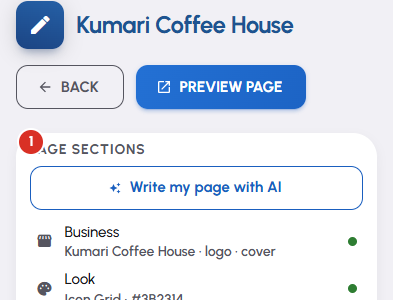
Page sections lists every part of your page in one column — Business, Look, Reviews, About, Gallery, Services, Products, Contact, Location, Payment, Videos, Documents, Timings, Social links, the enquiry form and the booking form. Under each name is a line saying what that section holds right now, and a dot beside it: solid green for content you wrote, a grey ring for empty, an amber ring for a section still carrying the values we filled in for you, and red when something in it needs fixing.
-
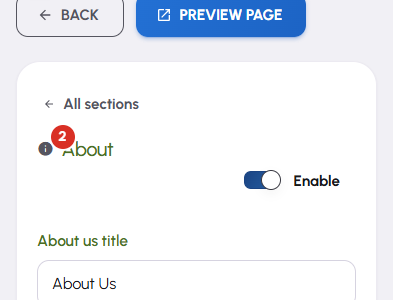
Tap a row to open it. That section's fields take the whole screen, and All sections at the top takes you back to the list. Moving between sections never loses what you have typed — the whole page stays in the form until you save it.
-
On a computer the list stays beside the open section and a live preview of your page sits in a third column, updating as you type. In a smaller window the preview moves behind a Preview button. On a phone there is none: you are already holding one, so open the page itself instead.
-
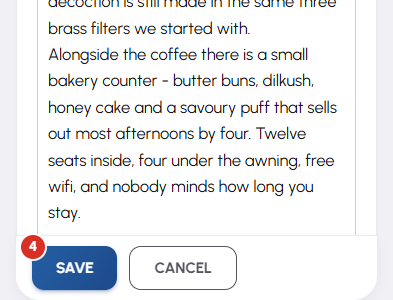
Save sits in a bar at the bottom and there is exactly one of it, whatever you have open. Cancel leaves the editor, and asks first if you have unsaved work. Unsaved changes shows beside the list heading until you save.
-
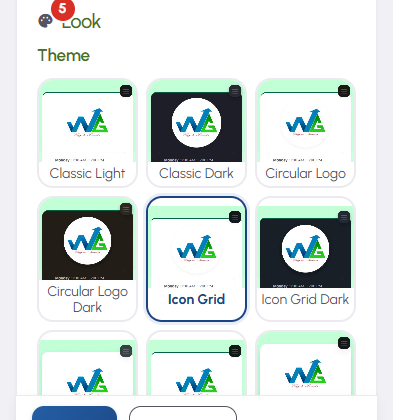
Look is the section that decides how the page appears. Pick one of the designs, then a colour combination — From my logo reads the logo you have already saved and picks the closest one for you — then a heading-and-body font pairing. Advanced is closed to begin with and holds the individual colours, a background image, a gradient and the full font list; open it only if you want one of them.
-
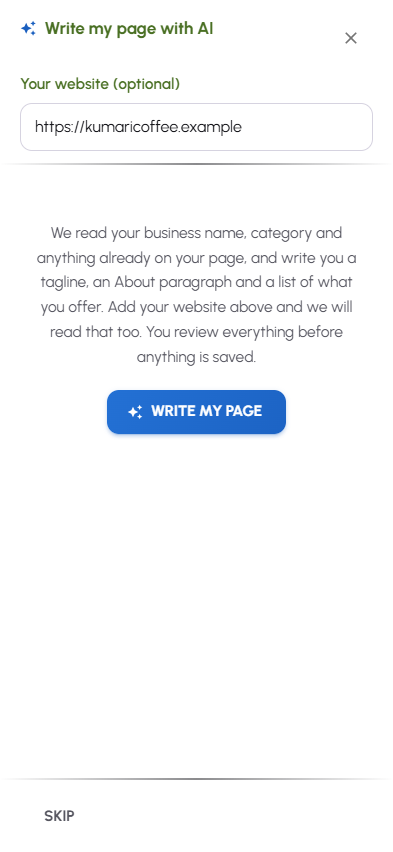
Write my page with AI, at the top of the section list, drafts a tagline, a category, an About paragraph, a list of what you offer and a pair of colours from what your page already says. Give it your website first if you have one. Nothing is written yet: you Accept the cards you want, one at a time or all at once, and the draft reaches your page only when you save.
-
A row marked Not on this plan needs a higher plan on this page, and opening it shows what that would give you. Your public page renders only what that page's live plan includes — so unlocking a section means upgrading that page, not your account.


