← All help topics

Business page

Your page

The home screen for one business page: its name and address, what to do next, its own numbers, and every other BizGo screen that page appears on. Owners with more than one page get a list of cards here first.

தமிழில் படிக்க

Steps

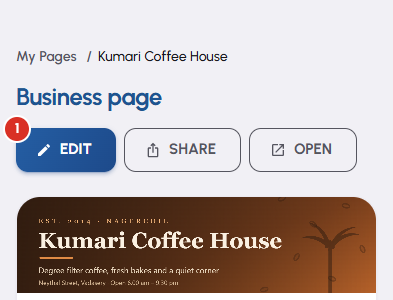
  1. Pages in the sidebar opens your page. The header carries the three things you do most — Edit to change what is on the page, Share to hand it to a customer, and Open to see it the way a visitor does. Below the header, the identity card shows your logo, your tagline, the address customers type, and which plan this page is on.
    Your page — 1
  2. Next steps lists what this page is still missing, one line at a time, in the order worth doing them in. Each line opens the screen that fixes it. When there is nothing left it says so rather than inventing work.

  3. The band under that is this page's own numbers — visits, feedback, leads, and when its plan renews. Tap one to open the screen behind it.

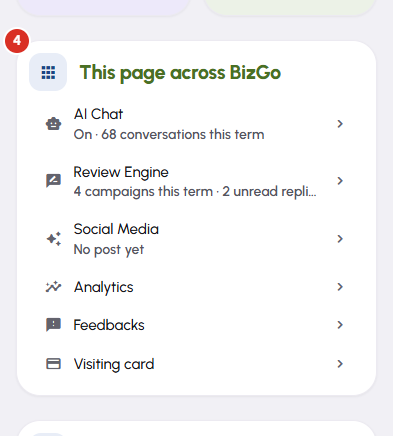
  4. This page across BizGo names the other screens this same page has: AI Chat, Review Engine, Social Media, Analytics, Feedbacks and Visiting card. Each row says what state that product is in for this page, so you can tell what is switched on without opening anything. Under it sit the most recent pieces of feedback the page has collected.
    Your page — 4
  5. If you have more than one page, Pages opens a list of cards instead and you pick one. Every card carries a single Edit button, that page's own address and status, a row of links to its other screens, and a menu in the corner holding Open public page, Copy page link, Duplicate page and Delete page. With one page there is nothing to choose between, so you land straight on the page itself.

Questions

Nowhere — it appears when there is something to list. With one page, Pages opens that page instead of showing you a list with one row in it. Create a second page and the list comes back, with a card for each.

Your page's link with a Copy button beside it, a Share on WhatsApp link you tap yourself, the QR code for a poster or a table card, a preview image for social posts, and a shortcut to the visiting card. Every one of them hands you something to pass on — BizGo does not message anybody on your behalf.

Because a plan belongs to a page, not to your account. Three pages means three plans, three renewal dates and three sets of features. This surprises almost everyone. The plan on each page's own screen is that page's plan, and Subscriptions lists them side by side.

The page exists in your account but nobody can see it at its public address. It happens to a new page that was never activated, and to a paid page whose plan has run out. The banner at the top of this screen offers Activate Free Plan and Upgrade Plan, and either one puts it live immediately.

A page with a live paid plan on it cannot be deleted, and the message that appears says so. Let the plan run out, or move it down to the free plan first. The confirmation box also asks you to type the page's address before it will proceed.

The content and the look — sections, text, theme, images. The copy gets its own new address and arrives Inactive on the free plan, with no views of its own. It does not inherit the original's plan. Treat it as a head start on a second outlet or branch.

Related

Three Products, One Dashboard

Your page, your plan. The Review Engine and AI Chat come with Pro and Premium — manage every page from one dashboard.

Digital Business Page

Your whole business on one shareable link — logo, services, timings, location and contact. Live in minutes.

Learn more →

Review Engine

Runs a WhatsApp follow-up campaign for every customer you serve, until they leave you a Google review.

Learn more →

AI Chat

Answers your visitors 24/7, captures their name and phone, and drops every lead into your CRM.

Learn more →
WhatsApp