Getting started
The Dashboard
The first screen after you sign in. With one business page the Dashboard is that page — what to do next, how it is doing, and one tap into each product. With more than one it is all of them together.
Steps
-
Your page is the first thing on the screen: its logo, its name, whether it is live, and the address customers type. Beside the address sit Copy link, Share on WhatsApp, QR code and Open page; under it, Edit page. This is not a summary of a screen somewhere else — it is the page itself.
-
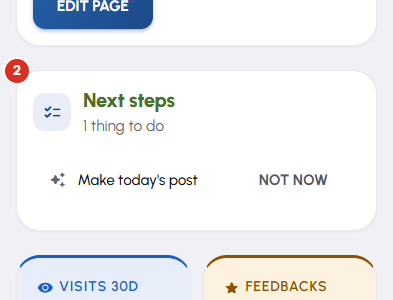
Next steps is the checklist below it, headed by how many things are left to do. Each line names one thing this page is missing and opens the screen that fixes it. Not now puts a line away for a while rather than for good, and an item you finish disappears on its own. When there is nothing left it collapses to one line instead of inventing work.
-
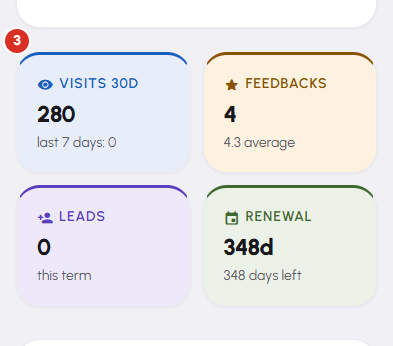
Then four numbers about this page. Visits counts the last thirty days, with the last seven underneath. Feedbacks counts the ratings customers left, with the average. Leads counts the enquiries, bookings and chat leads it has taken. Renewal counts down to the day the plan is due. Tap one to open the screen behind it — Analytics, Feedbacks, your leads and Subscriptions, in that order.
-
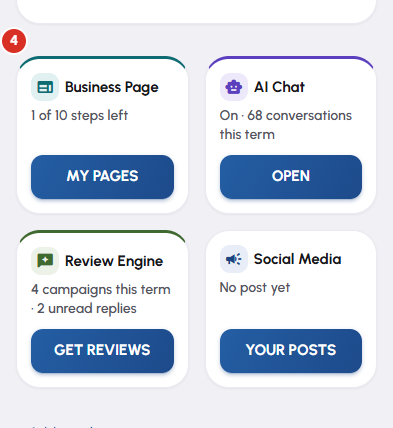
Under that, one card per product: Business Page, AI Chat, Review Engine and Social Media. Each says what state that product is in for this page — how many steps are left, whether the assistant is answering, how many review campaigns have gone out, when the last post was — and its button takes you in. The AI Chat button reads Turn on until the assistant is set up, and Open afterwards.
-
With more than one page the Dashboard is about the account instead. Totals across every page come first, then Your pages: one row per page with its logo, its name, whether it is live, a chip counting the steps still open on it, an Edit button, and a menu holding that page's other screens. Tap a row to work on that page. The header carries Add another page.


