← All help topics

Getting started

Creating your account

The sign-up wizard. It creates your BizGo account and your first business page in one run — your details, your business, a plan, then a look at the page before it goes live.

தமிழில் படிக்க

Steps

  1. Fill in Your Name and Mobile Number, tick the box agreeing to the Terms & Conditions and the Privacy Policy, then press Send OTP.

  2. Type the code that arrives by SMS and press Verify OTP. If that number already has a BizGo account the wizard says so and sends you to sign in instead — nothing you typed is lost.

  3. Name the business and choose its link. Your page URL is the part after bizgo.in/ and it is checked for you as you type. A logo is optional; a WhatsApp number is how customers will reach you. Press Continue.
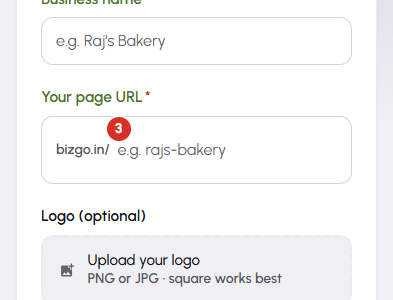
    Creating your account — 3
  4. Pick a plan. The card you select names the button, so it reads Continue with Basic, Continue with Premium and so on. Free is one of the choices and asks for no card. What each plan includes is listed on the pricing page.

  5. The last step shows your page inside a browser frame, at its real address. On the free plan the button publishes it straight away. On a paid plan it hands you to the payment step, and the page goes live when that completes.

Questions

No. The page URL is fixed when the page is created — the editor shows it greyed out with that note beside it. Everything else about the page can be changed as often as you like. If you need a different link, create a second page.

No. The free plan is one of the choices on the plan step and needs no card. You can move that page onto a paid plan later from Subscriptions.

It is filled with sample content so the layout has something to show. The screen says so under the frame. Once the page is live you can edit the theme, the text and every detail from the page editor, any number of times.

Then you have signed up before. Press Sign in on that message. To add another business page to the account you already have, use Create New Page from Pages rather than registering again.

The wizard confirms the page is live, shows you its address, and offers Go to Dashboard and View My Page. The page is public from that moment.

Related

Three Products, One Dashboard

Your page, your plan. The Review Engine and AI Chat come with Pro and Premium — manage every page from one dashboard.

Digital Business Page

Your whole business on one shareable link — logo, services, timings, location and contact. Live in minutes.

Learn more →

Review Engine

Runs a WhatsApp follow-up campaign for every customer you serve, until they leave you a Google review.

Learn more →

AI Chat

Answers your visitors 24/7, captures their name and phone, and drops every lead into your CRM.

Learn more →
WhatsApp