Social Media
Making a post in the Studio
Today's post is made for you and costs nothing. The Studio is the other thing: you describe a post you want, AI draws it, and it spends AI credits from this page's monthly allowance. This covers what to write, what Advanced holds, attaching a picture of your own, and the wait.
Steps
-
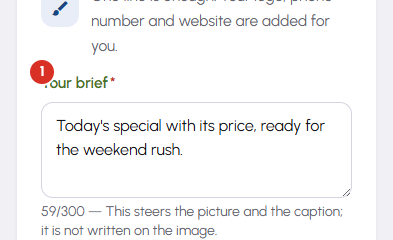
There is one field and it is the only one that has to be filled in. Write a line about the post you want — "Sunday brunch, half price for two", "we are open on the holiday", "our new filter coffee is in" — in your own words, as you would say it to a customer. It steers both the picture and the caption, and it is not printed on the image; if you want particular words drawn into the artwork, that is a separate box inside Advanced. Arriving here from the Calendar fills this line in for you from the day you tapped, for nothing, and you can rewrite it before spending anything.
-
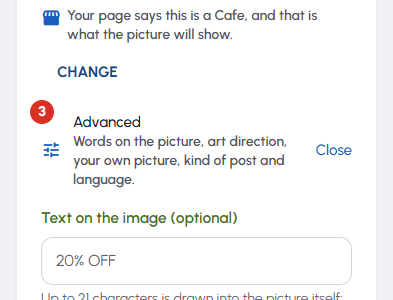
Under the field, a sentence says what kind of business the picture will show — a bakery, a salon, a phone shop. Most business pages do not state a category, so BizGo works it out from your page's own words and shows you the evidence it used. Change it if it is wrong, before you generate: it is the single biggest influence on what the picture looks like, and a bakery drawn as a gym is the one mistake here that wastes credits. Correcting it only changes the Studio until you choose to save it back to your business page, which is a separate, explicit tap.
-
Advanced is closed to begin with and most posts never need it. Inside: the short line of text to draw into the picture itself (keep it short — a long one moves to the brand strip instead of into the artwork), a note on how the picture should look, a picture of your own to work from, what kind of post this is, and which language the caption is written in. Your offer is not written onto the picture unless you put it in that first box — the main field describes the post, it does not caption it.
-
Attaching a picture of your own is worth knowing the limits of. It is a reference, not a photo we paste in: the picture that comes back is drawn fresh, in the spirit of what you attached, and it costs more credits than a plain post because a reference image is a more expensive kind of request. What it reproduces faithfully is a scene, a colour or an arrangement. What it reliably gets wrong is your logo and any writing in the photo — names come back misspelled — so let the brand frame put your logo and your name on, rather than attaching a picture that already has them.
-
Generate spends AI credits from this page's monthly allowance, and the screen tells you what is left before you press it. The included allowance comes with the page's plan and starts again at that page's own subscription-month boundary; credits you have bought never expire and are used only once the month's allowance is gone. One image is the same cost whoever you are, and a picture of your own costs more. Nothing is charged for typing, for changing your mind or for a run that fails on our side — a failed call gives a purchased credit back.
-
The picture takes about forty seconds to draw, and you do not have to sit and watch it. Leave the Studio, look at Today, open the Calendar — the post finds you: a message appears wherever you are in Social Media when it is done, with a way straight back to it. It is also in your Library either way. Only one post is made at a time for a page, so a second Generate while one is running is refused rather than charged twice, and if you close the tab entirely the post is still made and still saved.
-
What comes back is the same kind of post as the free daily one: four sizes, your brand frame, and the same Share list asking where it is going. Share it now or leave it — it is in the Library either way, and it can be shared any day after this one.


