AI Chat
Setting up AI Chat
One tap turns the assistant on and puts it on your page. Everything after that is refinement: four short steps the first time, and four collapsible panels with one Save when you come back. There is nothing to paste on your BizGo page and nothing to install.
Steps
-
Start on the AI Chat screen and press Turn on AI Chat on the card for the page you want. That one tap does the whole job: BizGo reads that page's own name, about text, services, products and contact details, has AI write the assistant from them — its name, its greeting, its colours and the text it answers from — and puts it on your business page. It takes a few seconds and the button says what it is doing. On a page whose plan does not already include AI Chat, the same tap starts the free trial. You are never asked for a website address here.
-
You land on Your assistant, the first of four short steps. Name and Title are what the visitor sees in the chat header, the picture beside them is the avatar, and Greeting is shown the moment the chat opens — it is not an AI reply, so it is instant and costs nothing. Next saves that step and moves on. Skip moves on and leaves what BizGo drafted exactly as it is, which for a field you did not want to think about is the right answer. Back is free: everything behind you is already saved.
-
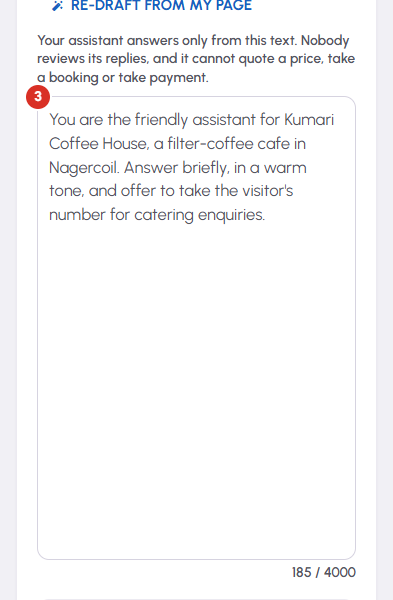
What it knows is the step that matters. The big box is where every answer comes from, and three things about it are worth reading twice. Nobody at BizGo reads, checks or approves a reply before your visitor sees it — replies are written fresh and reach the visitor within seconds, at any hour. The assistant cannot agree a price, confirm a booking, accept an order or take a payment, and nothing it says commits you to anything; it has no connection to your prices, your calendar, your stock or your payments. And it knows nothing about your business that is not written in this box: it does not read the open internet, and editing your business page does not change this text. Re-draft from my page rewrites the box from your page as it stands today. Starter questions are the tappable chips a new visitor sees before typing. Advanced holds Reply language, which decides whether it mirrors the visitor or always answers in one language.
-
Improve from my website sits under the same step, folded away after you have used it once. Type your address, press Read my website, and BizGo opens your homepage and — if it can find them — your About and Contact pages, then rewrites the box from what it read. It saves nothing: the result lands in the box as a proposal and becomes live only when you press Next or Save. That is deliberate and is the real safeguard, because whatever is on that website becomes the assistant's standing instructions. Read it before you keep it. If your site cannot be reached you still get a draft from your page, with a line saying the website part did not work.
-
Look has two controls you judge by eye rather than by reading: Colour, and two thumbnails for where the bubble sits. Bottom left is worth trying if your page already has a WhatsApp or call bar along the bottom. Advanced holds a second colour — BizGo picks a darker shade of your main one, which is what makes the gradient look deliberate — and a delay after which the chat opens by itself. Use the preview beside the step, or the Preview button at the bottom of the screen on a phone: change a colour and watch it change.
-
Leads and hand-over is the last step. Email new leads to is where a captured lead is emailed; leave it blank and leads are still saved, just not emailed. WhatsApp number for hand-over is the number offered to a visitor your assistant cannot help — they tap it, their own WhatsApp opens with the conversation ready, and the chat carries on with you. Advanced decides which of Name, Phone and Email the assistant asks for, how many replies it gives before handing over, what it says at that point, and the phone, email and address on its contact card.
-
Finish shows you that it is live, with the link to your own page, an Open my page button and Try it beside it — a real conversation against the settings currently in the form, which is not stored and does not count against your conversations. Press Done. From then on this screen is four collapsible panels, each with a one-line summary of what is inside it, and one Save in the header. The chip at the top reads Live on your page, Hidden or Not live yet, and Show on my page takes the widget off your page without losing a word of your settings. Walk through setup again re-opens the four steps whenever you want them.


